
Cheese Cat image by Javier via Flickr
Update October: As you can see from the comments this solution does work for most users with iPad, iPhone and iPod Touch. Please leave a comment, which App causes the slow backup.
Since months I searched for a solution to fix the slow iPhone sync without restoring my iPhone or having to reinstall all my Apps. Finally I found a surprisingly easy solution, covert and buried in an Apple support forum thread. So I decided to write this down here, also to better remember how to fix it the next time… ;)
Note: If you’re wondering, this is still a development blog for Flash. I just thought this might be an important information for the people out there.
What causes the slow backup?
It’s the Apps! Apps on the iPhone might store data to work properly. Some do store a lot, some don’t. For instance a game saves some highscore data (not very much), where a newspaper App or a rss reader might save updated data (can be very much). I believe lots of iPhone users, that experiencing slow backups, have problems with one or many Apps that are leaking in terms of saving tons of tiny files to the iPhone, especially when they have a lot of Apps and when they did backups cross devices (i.e. iPhone 2G to iPhone 3GS).
First try the easy fixes
However, some users got the sync problem fixed with relatively easy solutions. You want to check them first.
- Huge Camera Roll
- Reset Warnings
- Also, I experienced, that iTunes seems to have problems when the hard drive with the music files is not connected to the computer.
- Make sure the latest iTunes version is installed.
Find the evil App
When the solutions above does not work for you, it’s probably an App (or many Apps) causing the backup problem.
First it’s generally a good idea to remove Apps that you don’t need anymore. I know, iPhone users (including me) tend to leave unused Apps on the device. Removing those apps saves you space on the device, speeds up the backup process (even if the app it not evil) and keeps the backup folder within iTunes small. So clean up!
Didn’t work? Ok, let’s go hunting…
1) Find the backup folder on you hard drive
Windows XP:
\Documents and Settings\USERNAME\Application Data\Apple Computer\MobileSync\Backup
Windows Vista / Windows 7:
\Users\USERNAME\AppData\Roaming\Apple Computer\MobileSync\Backup
Mac:
\USERNAME\Library\Application Support\MobileSync\Backup
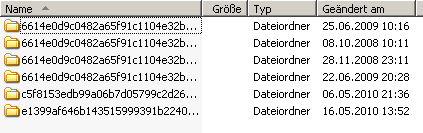
The folder has a strange long name like 6de624828c9d586e1f088f932798039e57e2af7c. To find the right folder (if you find more than one) open the settings in iTunes, go to devices and find the list “Devices backups”. Match the date of the last backup and the date of the folder.
2) Connect the iPhone and sync
First the backup progress bar in iTunes should move “normally”. After a while the progress bar stops. Probably this is the moment, where iTunes is backing up an App that is causing the endless loop.
3) Find the app
Get into the backup folder. Sort after date, so the newest files are on top. Every file iTunes backups actually consists of two files. The file with the data (.mddata) and an info file for that (.mdinfo), both again with a strange long name. While we cannot look into the actual data (can be an image, a html file, a plist file or whatever), we can have a look into the info file and see at least which App the file belongs to.
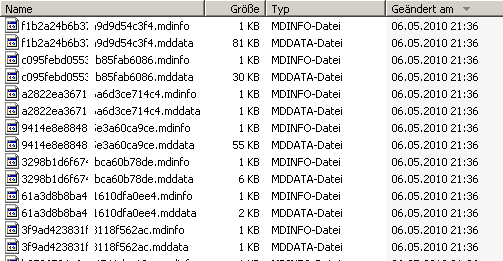
Start a text editor and open the .mdinfo file. It’s a binary file, so we see a lot of crap, however you also should see a string like this AppDomain-com.kayak.travel. There you go, the app iTunes is currently trying to backup is the Kayak app (Note: This is just an example, Kayak did NOT cause the slow backup in my case).
Wait some seconds. As you can see in the folder, the .mddata files a relatively small, so iTunes should move on to the next .mddata/.mdinfo file soon. iTunes still tries to backup the same file? Wait some more seconds. Still the same file? Well, we have a hit! The file iTunes tries to backup is corrupt.
In my case however, iTunes continued to backup files. So again, open the newest .mdinfo file. Same app as before? Wait another minute and open the newest .mdinfo file. Still the same app? Well, we have a hit! Although iTunes didn’t stop to backup, it has a hell of a lot to do by copying all files of the app from the device to the backup folder.
Note: Maybe iTunes continues to another app after a while and gets slow again. Then you have more then one “evil” app.
Let the sync run through (if it’s stuck, cancel it).
Do a clean backup
Unplug the device.
We want iTunes to make a clean backup. Copy the backup folder to somewhere else (can take some time). After this is finished, delete the backup in “Settings” –> “Devices” –> “Device Backups”.
Now delete the evil apps from the device.
Connect the device. Start iTunes (if it doesn’t start automatically). Start a sync (if it doesn’t automatically). Since iTunes does not find a backup file, it’ll do complete backup, which may take a while.
After that is finished do another sync, it should be super fast. Yeah!
Happy!
For me the App that caused the problem, was a newspaper app, that seemed to keep all (old) articles on the files system of the iPhone. After removing the app everything went back to normal.
A side effects was that the size of my backup folder went from 1GB to 100MB.
Sources: sbessel in Apple support forum, iphonealley.com – Clean backup